Chronode is a macOS menu bar application that automatically tracks time spent in your applications. It runs silently in the background, detecting which apps you use and how long you work without requiring any manual start/stop actions.
Why use Chronode?
- Completely Automatic
Launch your apps and start working. Chronode handles all time tracking in the background without interrupting your workflow. - Project Detection
For supported apps, Chronode automatically detects which project you're working on and tracks time accordingly. - Privacy First
All data stays on your Mac. No cloud accounts, no servers, no tracking. Your time data never leaves your computer. - Beautiful Analytics
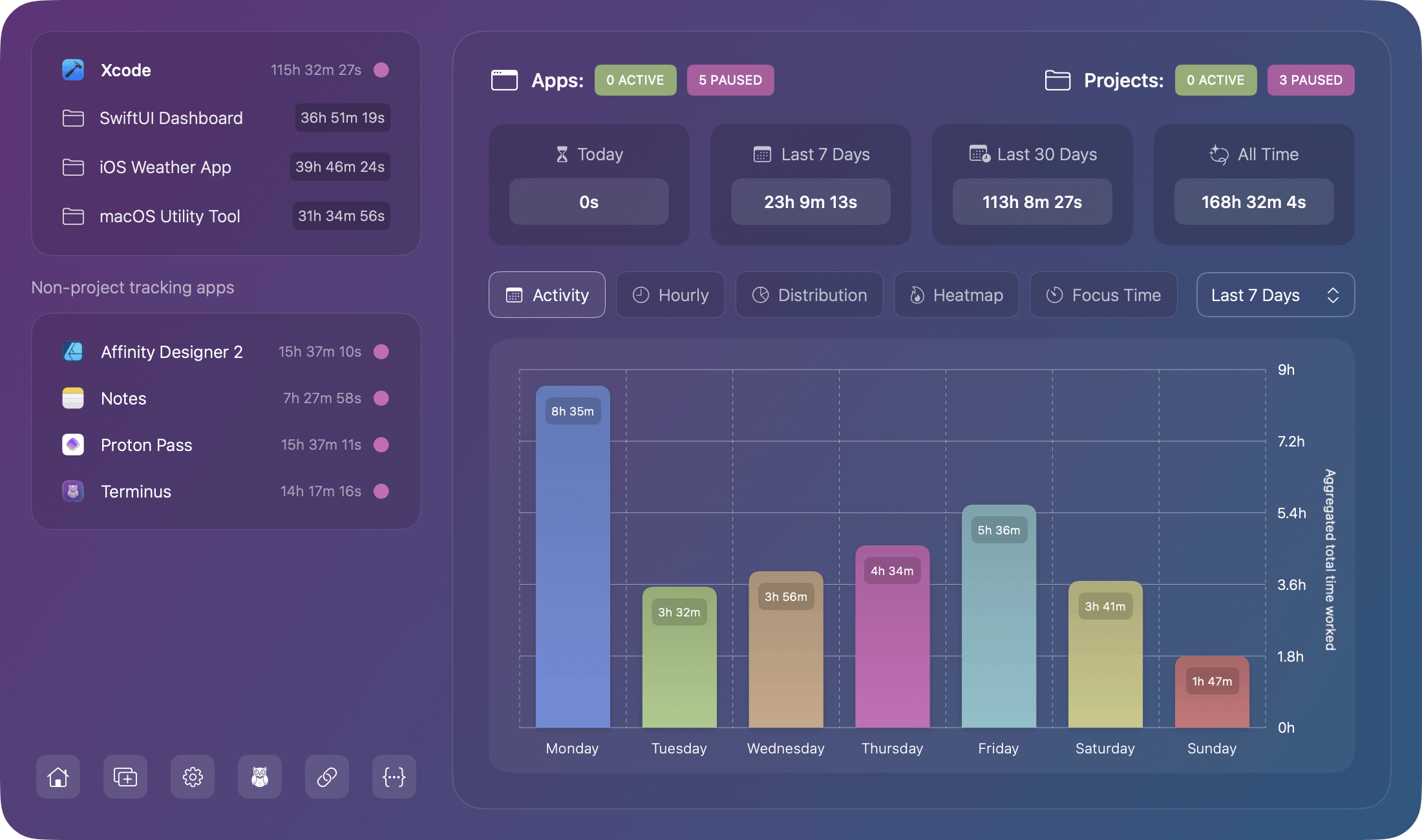
Over six reporting charts help you understand your work patterns: daily activity, hourly productivity, project distribution, trends, calendar heatmap, and session analysis. - Flexible Exports
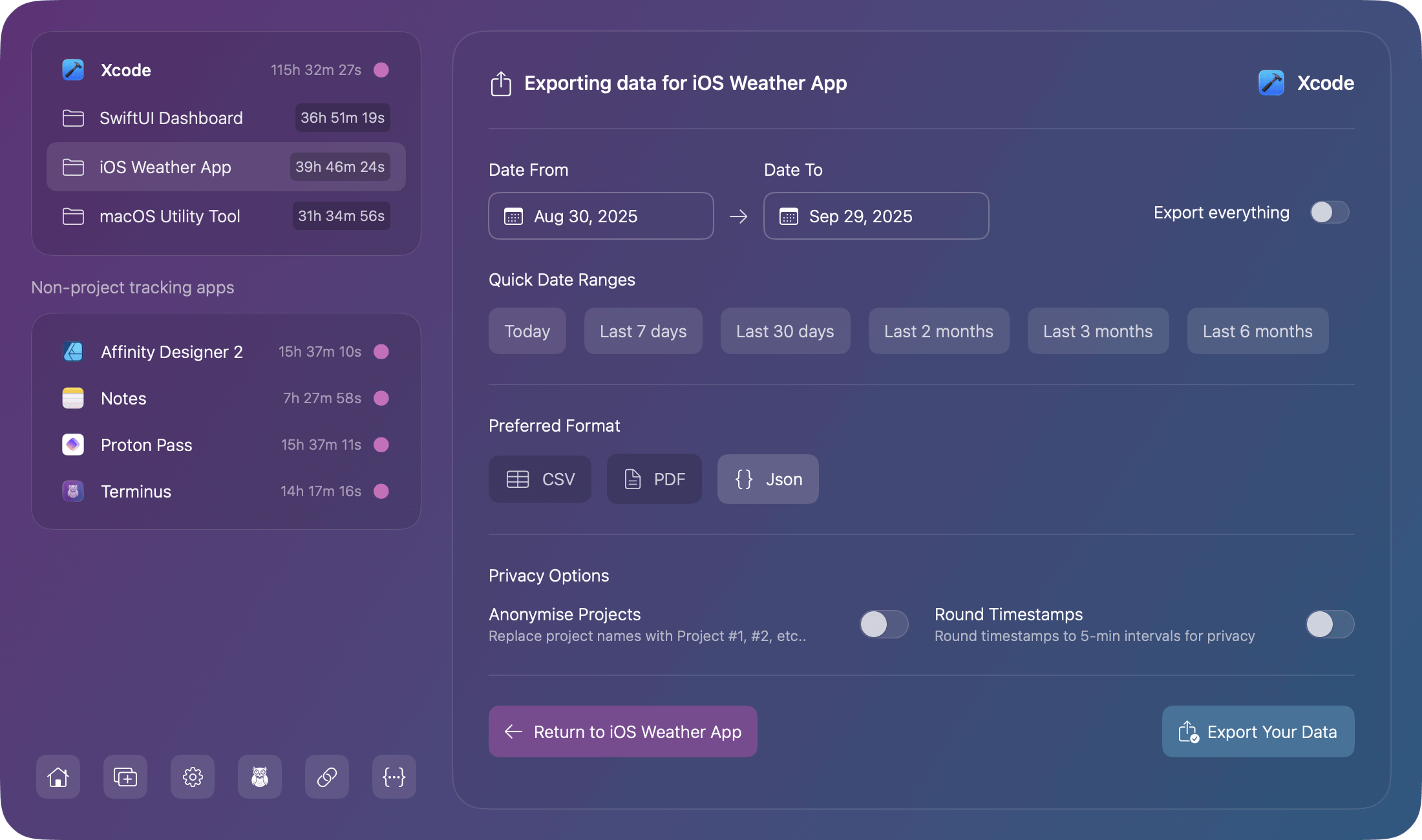
Export your data in CSV, PDF, or JSON formats for invoicing, reporting, or custom analysis.
How Chronode Works
Getting started with Chronode is simple:
- Add apps to monitor
Choose which applications you want to track from your Applications folder - Work normally
Launch your apps and focus on your work; Chronode tracks time automatically - View your statistics
Click the menu bar icon anytime to see time summaries, charts, and detailed session logs - Export when needed
Generate reports in your preferred format for billing, productivity analysis, or record keeping
No timers to remember, no buttons to click, no manual logging required.
Who Uses Chronode
Freelancers & Consultants
Track billable hours automatically with accurate time logs for client invoicing.
Remote Workers
Monitor productivity patterns and demonstrate work hours with detailed reports.
Development Teams
Understand time allocation across projects without manual time entry.
Students & Learners
Track study time and coding practice to build consistent habits.
Anyone Tracking App Usage
Monitor how you spend time on your Mac with automatic, effortless tracking.
Key Features at a Glance
Automatic App Monitoring
Chronode detects when you launch and quit monitored apps, creating accurate session records without manual intervention.
Intelligent Project Detection
Supports 11 development environments including Xcode, VS Code, PhpStorm, IntelliJ IDEA, PyCharm, WebStorm, Android Studio, and Sublime Text. Projects are detected automatically from window titles and configuration files.
Focus Mode
Choose to track only active window time (Focus Mode on) or total app runtime (Focus Mode off). Perfect for accurate billable hours.
Session Management
Chronode handles edge cases gracefully: force quits, crashes, and system sleep are all detected and handled properly so no time data is lost.
Real-Time Updates
Watch your time accumulate as you work with live updates in the sidebar and charts. All analytics include currently active sessions.
Comprehensive Analytics
Six chart types provide insights into your work patterns: Activity (by weekday), Hourly Productivity, Project Distribution, Trends, Calendar Heatmap, and Focus Sessions.
Professional Exports
Generate reports in CSV (for spreadsheets), PDF (for clients), or JSON (for integrations) with privacy options to anonymize projects and round timestamps.
Complete Privacy
100% local storage using Core Data. No cloud sync, no accounts required. Automatic crash reports help improve stability, with optional anonymous telemetry (disabled by default). Your time tracking data belongs to you alone.
System Requirements
- macOS 14.6+ (Sonoma) or later
- Requires under 50MB of disk space.
- Uses less than nder 50MB RAM usage
- Uses less than 1% CPU usage during normal operation
- Optimized for Apple Silicon, fully compatible with Intel Macs
Quick Start
Ready to begin? Setup takes less than 5 minutes:
- Download and Install Chronode
- Grant Accessibility permissions when prompted
- Add your first app to monitor
- Start working and tracking begins automatically
For detailed setup instructions, see the Getting Started Guide.
Why Choose Chronode?
Privacy You Can Trust
Your time tracking data never leaves your Mac. No cloud servers, no accounts required. Only essential crash reports and optional telemetry (disabled by default) are transmitted. Pro users need internet for license verification at launch.
Lightweight & Efficient
Uses less than 1% CPU and under 50MB RAM. You'll forget it's running.
One-Time Purchase
Basic is always Free. Pro has no monthly subscriptions. Pay once, use forever with lifetime updates included.
Built for Automatic Tracking
Unlike manual time trackers that require constant attention, Chronode works invisibly in the background.
Explore the Documentation
New to Chronode?
-
Getting Started Guide
Installation, setup, and first steps -
Core Features
Understanding automatic tracking and session management -
FAQ
Common questions answered
Ready to dive deeper?
-
Project Detection
How automatic project detection works for supported apps -
Analytics & Charts
Provided reporting statistics and understanding your time data visualizations -
Settings & Preferences
Customizing Chronode's behavior and default options.
Need help?
-
Troubleshooting
Solutions for common issues -
Data Storage
Understanding how your data is stored and handled -
Contact Us
for support, feedback, feature requests and bug issues