Overview
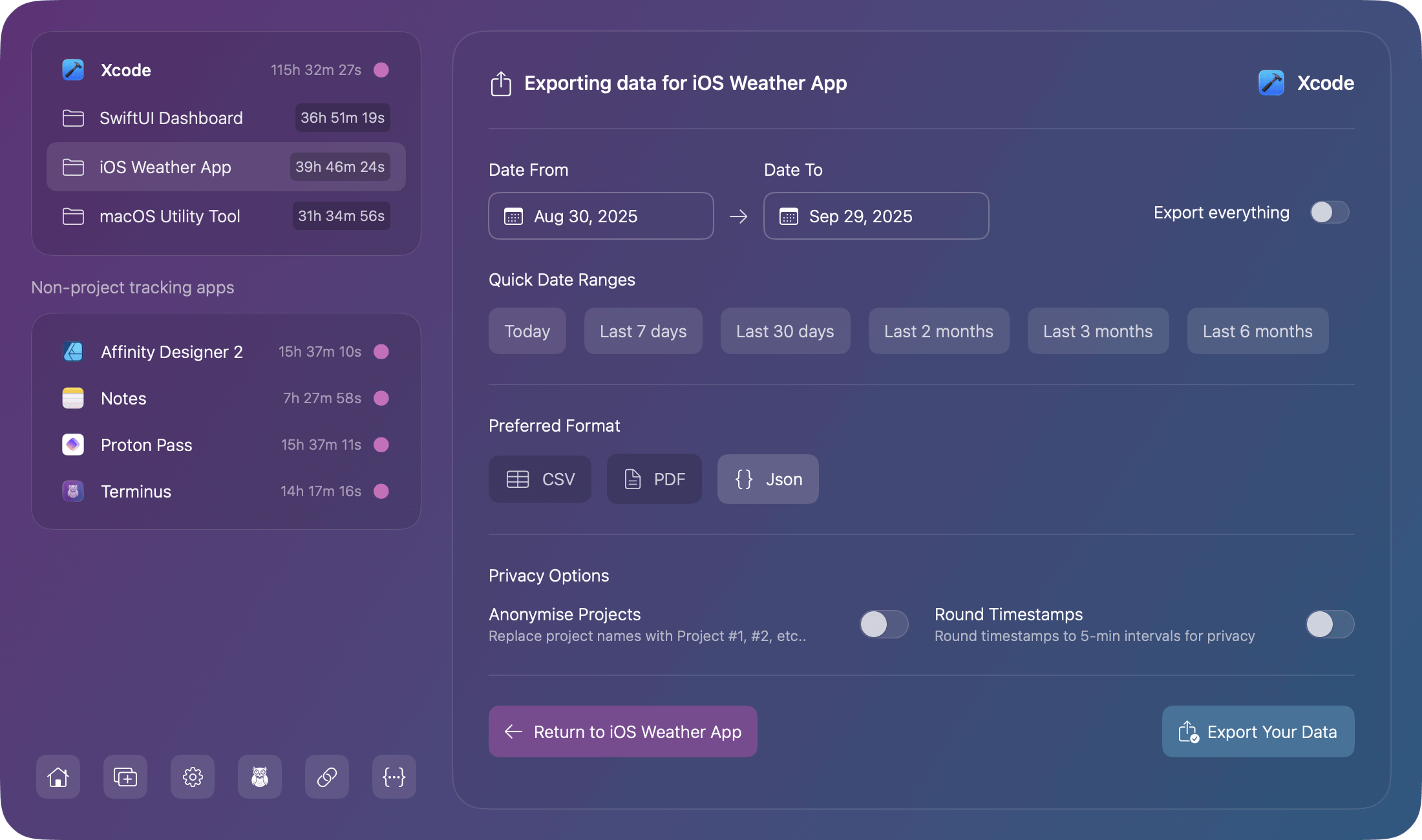
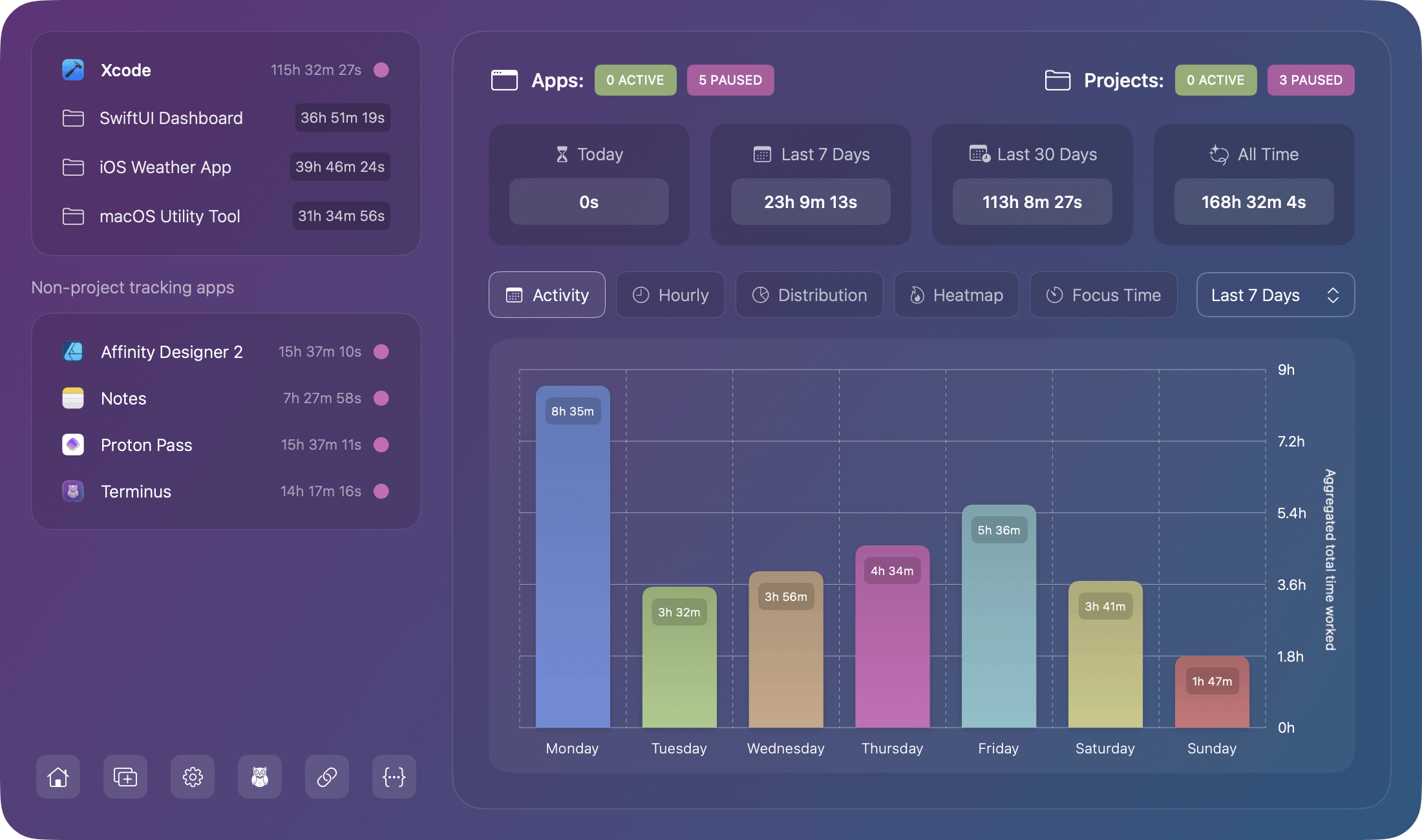
Chronode can automatically detect which project you're working on in supported apps. This provides detailed time breakdowns without any manual project switching.
Important: Project detection only works with supported apps. All other apps track total time without project-level detail.
Supported Applications
Currently, Chronode supports automatic project detection for:
| App | Version | Method |
|---|---|---|
| Xcode | All versions | .xcodeproj/.xcworkspace files |
| Visual Studio Code | All versions | Folder name from window title |
| PhpStorm | All versions | JetBrains project detection |
| IntelliJ IDEA | Professional & Community | JetBrains project detection |
| PyCharm | Professional & Community | JetBrains project detection |
| WebStorm | All versions | JetBrains project detection |
| Android Studio | All versions | Project name from window |
| Sublime Text | 3 & 4 | Folder name from window title |
Note: More supported apps may be added in future updates.
How Project Detection Works
Xcode
Chronode reads the .xcodeproj or .xcworkspace file from the active window.
What gets detected:
MyiOSApp.xcodeproj    → Project: "MyiOSApp"
ClientApp.xcworkspace → Project: "ClientApp"
File filtering
Chronode ignores individual source files and only tracks when a project is open.
Fallback
If window title parsing fails, Chronode checks Xcode's configuration files.
Visual Studio Code
Parses the folder name from the window title.
What gets detected:
Window title : "index.html - WebsiteProject - Visual Studio Code"
→ Project    : "WebsiteProject"
Special cases handled:
- Remote development indicators (SSH, WSL, containers)
- Multi-part window titles
- Workspace vs. folder mode
Fallback
Checks recent workspace files if window title is ambiguous.
JetBrains IDEs
Extracts project name from window title format [ProjectName].
What gets detected:
Window title : "[MyAPI] – routes/api.php"
→ Project    : "MyAPI"
File filtering
Ignores standalone file windows (files opened without a project).
Fallback
Reads .idea directory project configuration.
Android Studio
Parses project name from window title.
What gets detected:
Window title : "MainActivity.kt - MyAndroidApp [app]"
→ Project    : "MyAndroidApp"
Sublime Text
Extracts folder name from window title.
What gets detected:
Window title : "index.html (~/Projects/WebApp) - Sublime Text"
→ Project    : "WebApp"
Note: Works best when Sublime is opened with a folder/project rather than individual files.
Window Title Filtering
Chronode intelligently filters out non-project windows to ensure accurate tracking. The following are considered as windows to ignore and are not tracked as projects
Xcode
Over 185 known window titles including:
- Welcome screen
- Preferences/Settings
- Documentation browser
- Individual source files without project context
VS Code
Over 220 known window titles including:
- Welcome page
- Settings editor
- Extension marketplace
- Individual untitled files
JetBrains IDEs
Over 100 known window titles including:
- Welcome screen
- Preferences/Settings
- Find in Files results
- Database tools
- Terminal windows
- Plugin marketplace
- Individual files without project
All Others
All other project supported applications have additional file type and window title filtering as described by the example applications listed previously. We continue to monitor application updates and update the ignore lists as soon as possible.
What this means:
If you open settings or documentation, Chronode won't create a "Settings" or "Documentation" project as it knows these aren't real work projects.
File Extension Filtering
Chronode maintains extensive lists of over 550 common file extensions to ignore, preventing individual files from being tracked as projects:
Why this matters:
If you open a single file in an application (eg XCode), Chronode won't track it as a project named "MyFile.swift" as it knows this isn't project work.
Fallback Detection
If window title parsing fails, Chronode has fallback methods:
- Xcode
Checks for recent projects in~/Library/Developer/Xcode/ - VS Code
Reads workspace history from settings - JetBrains IDEs
Examines.ideadirectory and recent project lists
This attempts to provide more reliable project detection even when window titles are ambiguous.
Non-Supported Apps
Apps not in the supported list will:
- Track total time in the application
- Show only the app name (no projects)
- Still record sessions accurately
- Work perfectly for time tracking without project detail
This is normal behavior for apps that don't have project detection support yet.
Future Support
Project detection support may expand to include:
- Additional IDEs and development tools
- Non-IDE applications with project/document structures
- Custom project detection rules based on files.
This documentation will be updated when support changes. Also Check for app updates to get the latest supported app list.